Cygwin Installation:
(For PC's running Microsoft OS.)
CSIM, by its nature, requires a compiler and development libraries.
Although Unix/Linux PC's tend to contain all necessary functions,
Microsoft systems tend to lack development tools. Fortunately, one option is to add them
without additional costs from the Cygwin libraries. (Other options also exist.)
To install CSIM under Cygwin on a Microsoft Windows PC, you must have Cygwin installed and you must be
in a Cygwin or an Xterm window.
Cygwin is a freely available package of libraries that bring powerful development capabilities
to MS-windows. We can send you a DVD of a known-good copy of Cygwin, or you can burn your own installation DVD from
cygwin_1.7.iso [1.9-GB] (right-click to save-as).
(Note that this file is a complete DVD image. You need to burn it as an ISO image; not just a data-disk containing containing the iso file.)
Then CAREFULLY follow Cygwin installation procedure directly below. For other options, see Other Advanced Cygwin Options.
Cygwin installation is straightforward. It is driven
by the installation manager, which you open first. It enables you to control
which packages you download and install. We recommend installing ALL cygwin packages, which requires
about 1.9 GB free space.
Note: We have found that on some newer centrally administered Microsoft platforms
(ex. corporate administered), if you double-click the "setup.exe" file to install cygwin,
then you will require Sys-Admin privileges.
However, if instead, you double-click the "extract_cygwin.exe" file, then any user can
complete the install.
Cygwin Installation Procedure:
CAUTION: You MUST follow these step-by-step instructions CAREFULLY -- ESPECIALLY STEP 7 !!!!!!!!!.
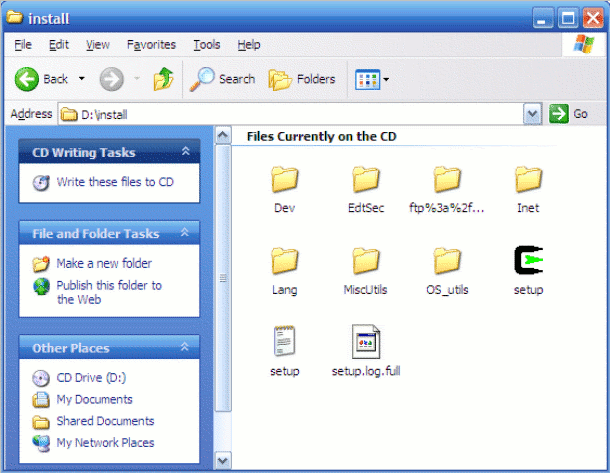
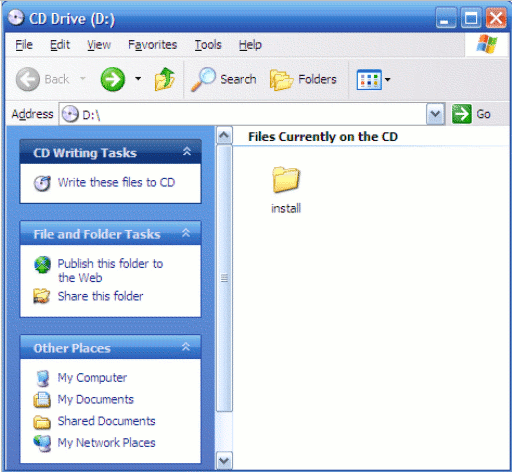
- Insert Cygwin Installation CD, and open file browser on it. It should look like this.
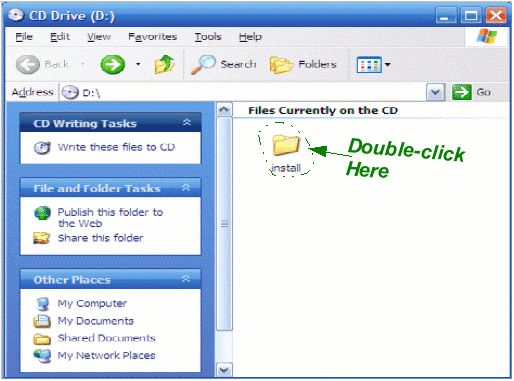 Open the Install directory by double-clicking on it.
-
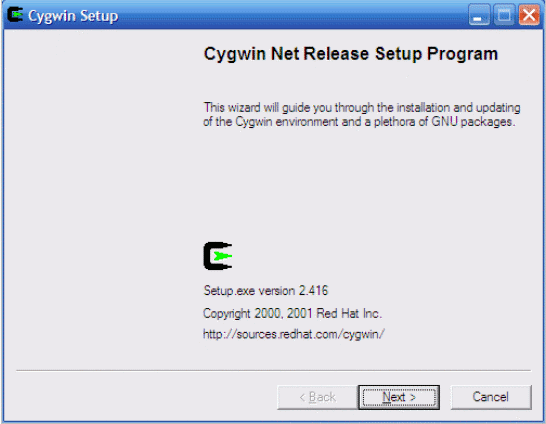
| Invoke the Cygwin setup.exe file by double-clicking:
|  |
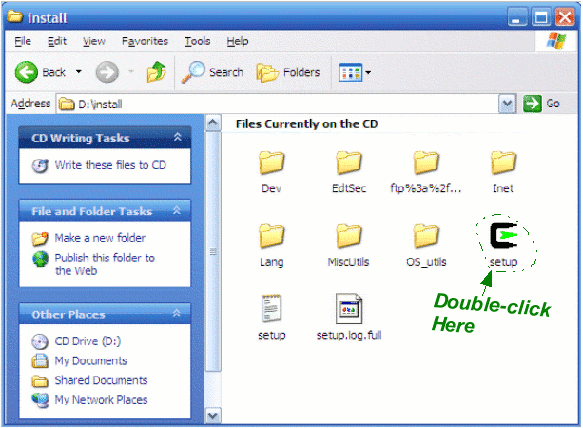
This brings up the Cygwin installer that you will use for installing Cygwin.
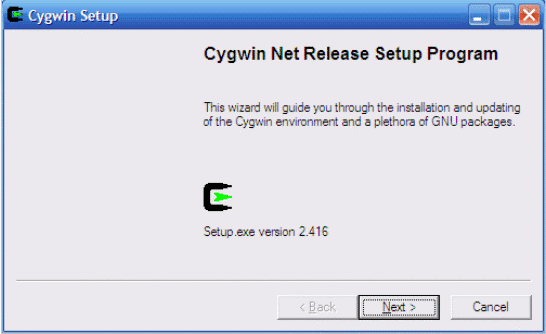
Click Next.
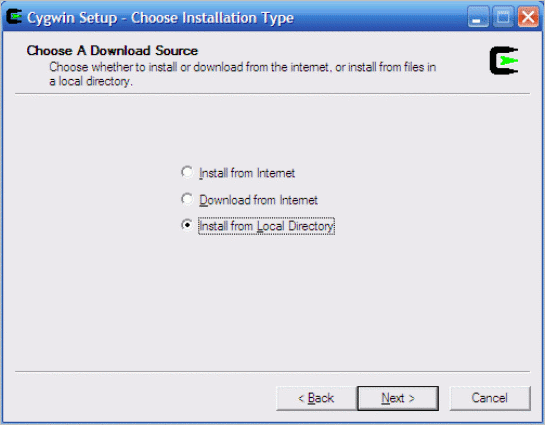
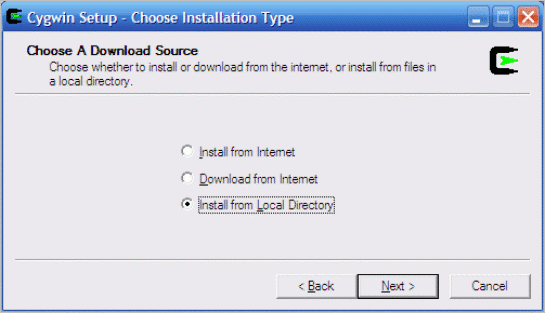
- Select: Install from local directory.
Then click Next.
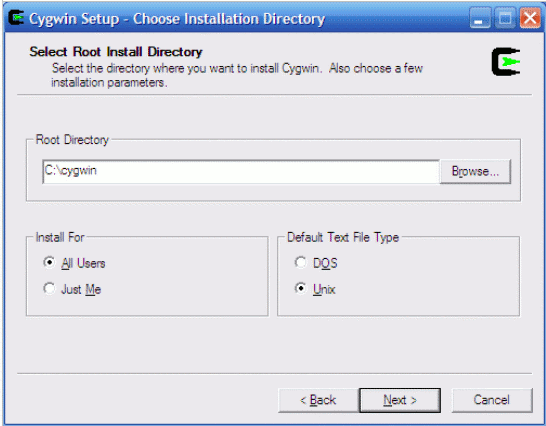
- The next screen is titled: Select Root Install Directory
Where it says: Where you want to install:
leave this as: C:\cygwin
or whatever drive/directory you want to install Cygwin TO.
(Note that a limitation of Microsoft's registry-based file-system is that only one
copy of Cygwin can be actively registered.)
Click Next.
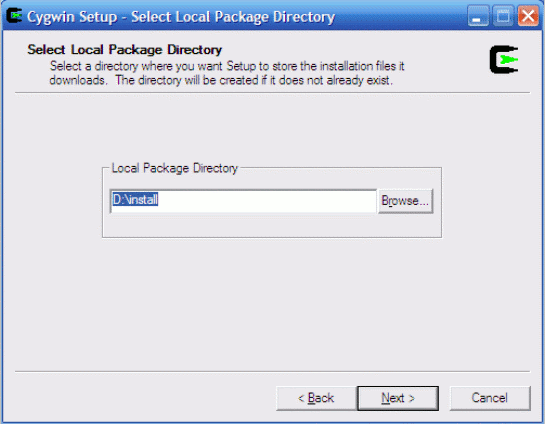
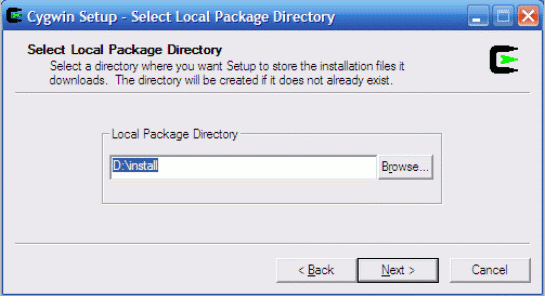
- The next screen is titled: Select Local Package Directory
Even though it says: Where you want Setup to store ..., you should pick the
drive containing the Cygwin-setup CD.
(When installing from CD, point this at the CD's install directory.)
Click Next.
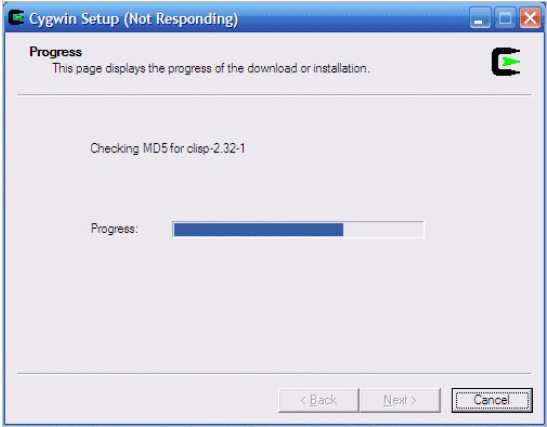
- Watch Progress. You will see Checking Package: as each of many
packages go by, and a progress bar. This may take a few minutes.
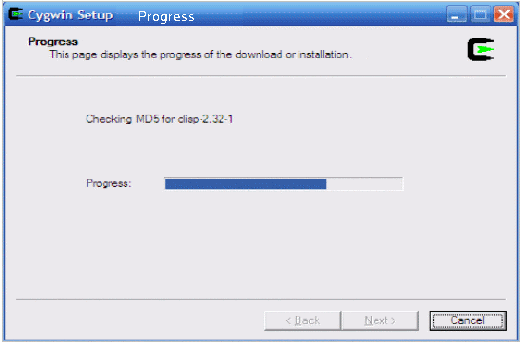 (Nothing is actually being installed yet. It is just checking all the packages.)
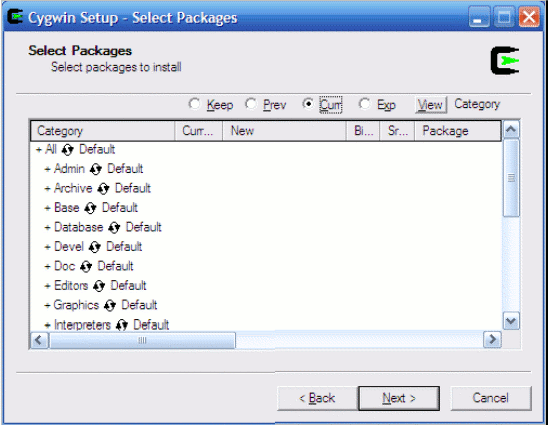
- Finally you will see the screen for Select Packages.
At the top, there will be:  ... Which must be changed.
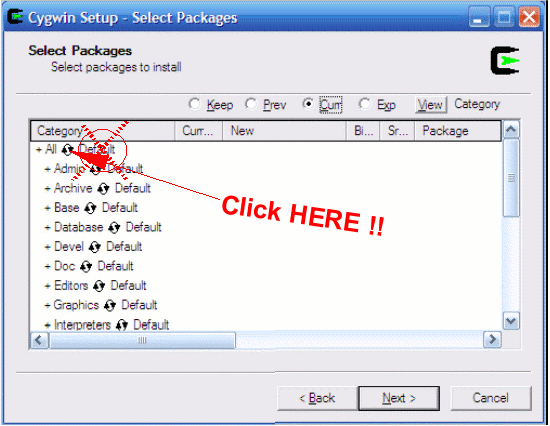
It is important that you click only the up-down ( ) arrow symbol.
Wait for it to respond. It may take a few seconds to toggle the selection (to the right) on each click.
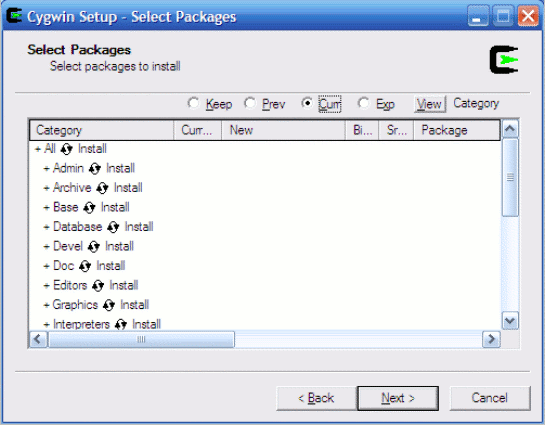
===>> You should click it ONCE to toggle Default to Install
<<===.
The key here is that you want to it to say:  .
.
(Caution: Default - does NOT equal - ALL !!! Specifically, Default does NOT
install the X-server and development libraries needed by CSIM.)
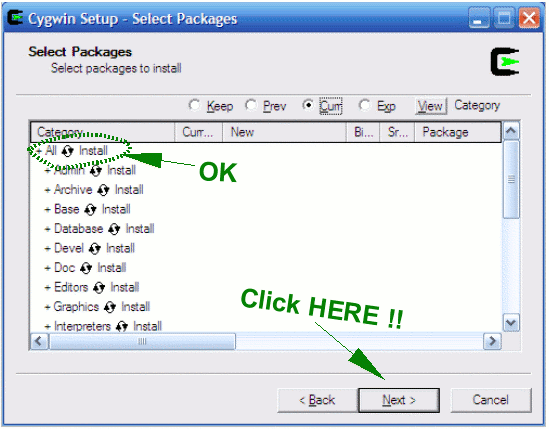
(Common mistakes at this critical point are:
- Selecting install-default. This does *NOT* install all;
- Clicking the + sign or clicking the round-arrows too fast and clicking next too soon
so that the wrong selection is taken.
)
Click Next.
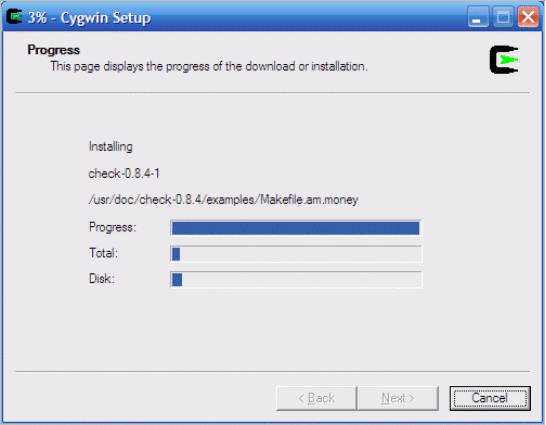
- You will then see the Progress Page
Go get a cup of coffee. You will see three progress bars. It may take a few minutes.
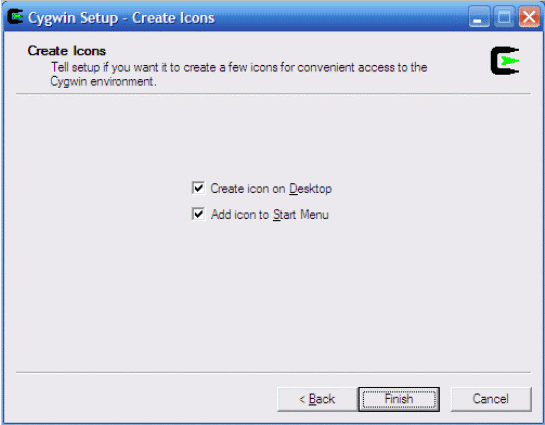
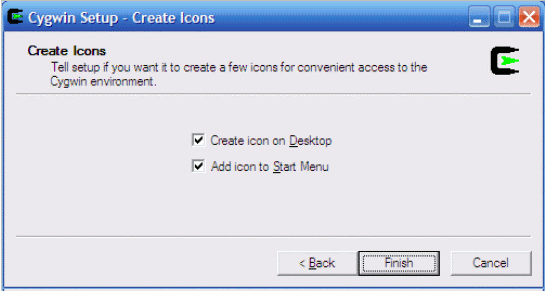
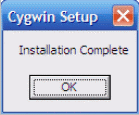
- On the finish screen, it asks about creating a Cygwin icon. Click Finish and then OK.
Post Install:
Now that Cygwin is installed,
make a short-cut (desktop icon) to: {cygwin_root}\usr\X11R6\bin\startxwin.exe
Where {cygwin_root} is the location where you placed the cygwin directory. Ex. c:cygwin
See Cygwin Setup for additional info about setting up your Cygwin environment.
Invoke Cygwin:
Click the startxwin icon, or type startxwin from the Cygwin terminal window.
You must do this to start the X-server. (On older Cygwin-1.4, it was startxwin.bat) You need to do this only once
per session of using Cygwin (for example, after re-booting your PC).
You should now have a terminal window, and you can run X-window programs. Complete the installation from step (2) below.
Note: If your cygwin installation process was not successful or you wish to start-over,
you should re-invoke setup.exe and run through the steps (as if you were installing)
until you hit step 6, then
select un-install. The Cygwin installer and Microsoft's registry attempt to maintain
information about the Cygwin installation. If the installation state becomes
corrupted for any reason, such as a mis-install or a downloading hangup, it may be necessary to
edit the registry file with Regedit to delete all instances of Cygwin entries before trying to
install again.
Complete the CSIM installation steps 1-4 under the CSIM Install Instructions
You must work do these from within a Cygwin X-window, such as the one started from startxwin.bat.
After completing the CSIM installation and sourcing CSIM's setup file, test CSIM by invoking the CSIM GUI.
After sourcing the CSIM setup file in the Cygwin X-terminal window, type gui.
If it fails to bring up a window:
- If it says gui: Command not found. Then you may have not set the right installation
directory path in the setup file, or forgot to source the setup in that window.
- If it says Error: Can't open display: Then the X-server is not running.
You need to invoke /usr/X11R6/startxwin.bat. If this still does not work,
then the X libraries must not have installed. Go back and re-do your cygwin install carefully,
possibly from a known-good source.
Additional Cygwin installation notes can be found at:
For questions, contact:
E-Mail: admin@csim.com
 Open the Install directory by double-clicking on it.